
8digit Creative LLC
8digit Planner for DaVinci Resolve
Send a finished timeline to Planner without leaving DaVinci Resolve Studio. The 8digit Planner panel exports your timeline, uploads it to a brand’s Library or puts it on the content calendar as a Reel, and brings comments from Planner back as timeline markers. Publishing to social networks stays manual.
Requirements
- A Mac with macOS. Windows is not supported yet.
- DaVinci Resolve Studio 21. The free version of DaVinci Resolve can’t load Workflow Integrations.
- A Planner account with access to the brand you deliver to.
Install
Quit DaVinci Resolve, open Terminal (Applications → Utilities) and run this command:
curl -fsSL https://github.com/8digit/8digit-planner-resolve-releases/releases/latest/download/install.sh | bashThe installer:
- downloads the latest release and checks its signature and checksum before installing anything;
- asks for your Mac password at most once, only to create the panel’s own folder in DaVinci Resolve’s Workflow Integration Plugins folder;
- uses the
WorkflowIntegration.nodethat comes with your own copy of DaVinci Resolve; - never contains passwords, tokens or keys.
If something goes wrong, run the same command again: it repairs the installation.
Open and sign in
- Open the panel. In DaVinci Resolve, choose Workspace → Workflow Integrations → 8digit Planner.
- Sign in. Choose Sign in with Planner. Your browser opens Planner: sign in, then choose the workspace and the brands the panel can reach.
- Go back to DaVinci Resolve. The panel works with your current Planner permissions in those brands, never with more.
What it does
Export and deliver to Library
The panel exports the current timeline with Quick Export (H.264, at the timeline’s resolution) or with a render preset you choose, and uploads it to a brand’s Library, into a folder if you want. When you deliver the same timeline again, it becomes a new version of the same file: v2, v3 and so on.
Put it on the calendar
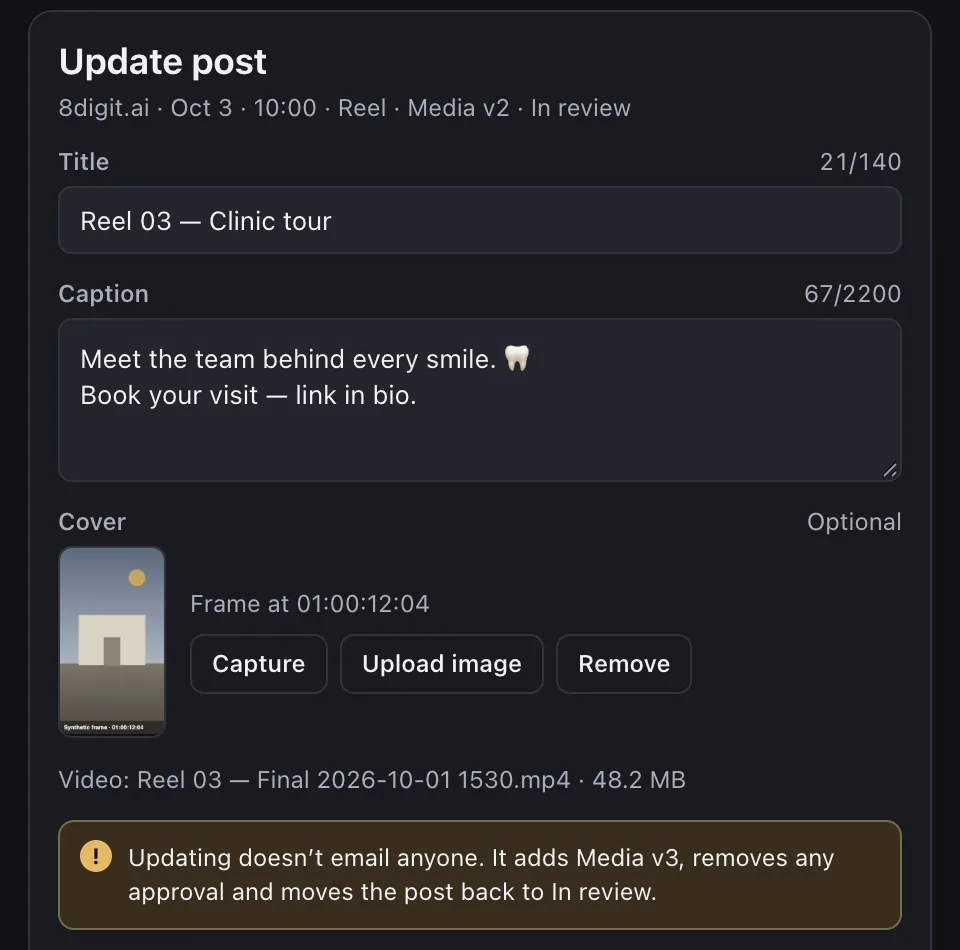
Place the export on the content calendar as a Reel, at a date and time in the brand’s time zone, with a caption and a cover captured from the playhead or uploaded from your Mac. Create a new post, or pick an existing one with Update a post. New posts start as Draft, and updating a post adds a new version of its video, which removes any approval, as in Planner.
Bring feedback into your timeline
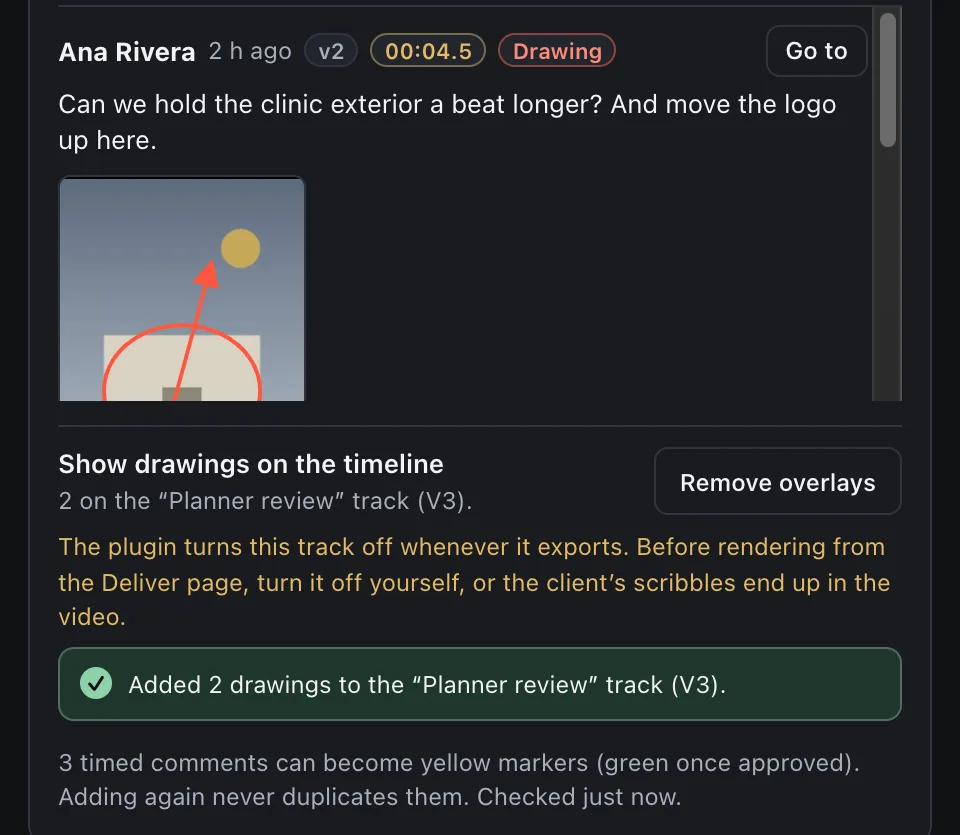
Comments from Planner come back as timeline markers at their exact time, and Go to jumps to a comment’s frame. Drawings can go on a “Planner review” track. The panel turns that track off whenever it exports; if you render from the Deliver page instead, turn it off first. Approving stays in Planner.
Updates
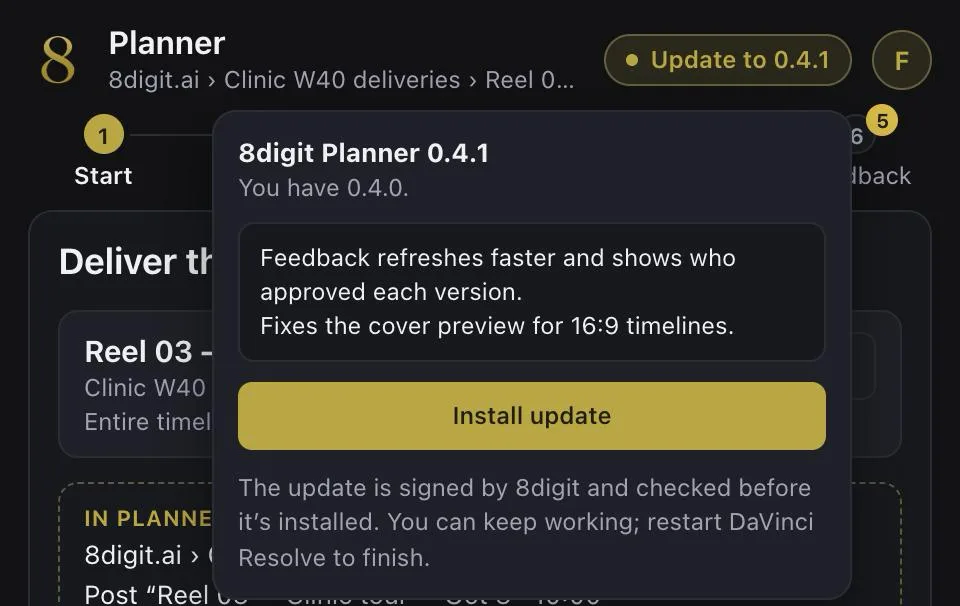
The panel checks for a new version when it opens and every 6 hours. When one is ready, Update to x.y.z appears in the panel’s header. It installs the update after verifying its signature; restart DaVinci Resolve to finish. The previous version is kept, and the panel goes back to it if a new version doesn’t start.
Privacy and security
- The panel signs in through Planner. It never sees or stores your password.
- Its access tokens are stored encrypted in your Mac’s Keychain.
- It talks only to Planner, and to GitHub to check for updates.
- The connection appears in Planner under AI assistants, in your account menu, where you can see it or revoke it. Signing out in the panel revokes it too.
- What it uploads stays inside the brand in Planner. Nothing becomes public.
Uninstall
- Sign out in the panel. This also revokes the connection in AI assistants.
- Remove the panel. Quit DaVinci Resolve and run these commands in Terminal to remove the panel and its local data:
rm -rf "/Library/Application Support/Blackmagic Design/DaVinci Resolve/Workflow Integration Plugins/com.8digit.planner.resolve"
rm -rf "$HOME/Library/Application Support/8digit-planner-resolve"
Help
Releases, checksums and signatures are public at github.com/8digit/8digit-planner-resolve-releases. Need help? Contact support.