
8digit Creative LLC
Connect your AI to Planner
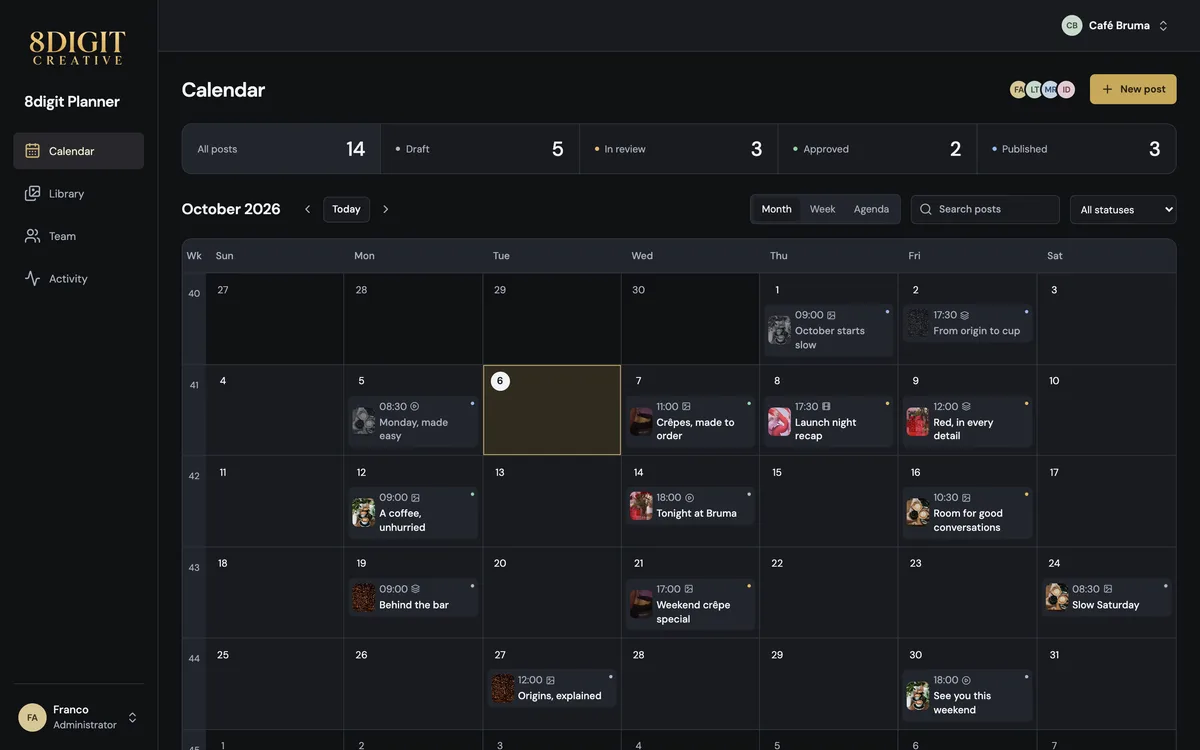
8digit Planner works inside Claude, Claude Code, ChatGPT and Codex. Your assistant can read your calendar, upload finished images and videos, prepare posts and folders, and handle approvals you ask for, in the workspaces and brands you allow. Publishing to social networks stays manual.
Connection address (not a password or API key): https://planner.8digitcreative.com/mcp
Setup prompt
Paste this into any of the four apps. Claude Code and Codex install Planner themselves; Claude and ChatGPT tell you the exact steps.
Set up the 8digit Planner connector for me.

Details:
- MCP server URL: https://planner.8digitcreative.com/mcp (remote Streamable HTTP with OAuth sign-in; there is no API key)
- Plugin with the Planner skill: GitHub 8digit/8digit-planner-plugin
- Full guide: https://planner.8digitcreative.com/connect-ai

If you can run terminal commands here, install it yourself:
- Claude Code: claude plugin marketplace add 8digit/8digit-planner-plugin && claude plugin install 8digit-planner@8digit (if plugins are unavailable: claude mcp add --transport http --scope user 8digit-planner https://planner.8digitcreative.com/mcp). Then tell me to run /mcp, pick 8digit-planner and choose Authenticate.
- Codex: codex plugin marketplace add 8digit/8digit-planner-plugin && codex plugin add 8digit-planner@8digit (if plugins are unavailable: codex mcp add 8digit-planner --url https://planner.8digitcreative.com/mcp), then run codex mcp login 8digit-planner.

If you cannot install it from here (Claude on the web or desktop, Cowork, ChatGPT), give me the exact steps for this app:
- Claude: open Customize → Plugins → Discover, find 8digit Planner and choose Add, then connect it when Claude asks. Only if it is not listed for this account: Customize → Connectors → Add → Add custom connector, name it 8digit Planner, paste the URL, add it, then choose Connect.
- ChatGPT: open 8digit Planner in the plugin directory (https://chatgpt.com/plugins/plugin_asdk_app_6aba6331fd6c8191877def4fd6da0d28), add it and connect it, then enable it in this conversation. Only if plugins from the directory are unavailable for this account: turn on Developer mode in Settings → Security and login, open chatgpt.com/plugins and add a plugin with the URL and OAuth.

When the Planner page opens, I will sign in and choose my workspaces and brands myself. Never ask me for a password, code or token. After I connect, verify it: call list_workspaces and get_capabilities and tell me which workspaces and brands you can reach. Then check list_posts for my brand: if it has no posts yet, propose one sample post for tomorrow at 10:00 in the brand's time zone (a title and a caption I can edit) and ask me to confirm before you create it; if it already has posts, tell me what is coming up. Do not say the setup worked until those calls succeed.Claude
Web, desktop and Cowork.
- Add the plugin. Open Customize → Plugins → Discover, find 8digit Planner and choose Add. It brings the connection and the Planner skill.
- Connect Planner. Choose Connect when Claude asks (or in Customize → Connectors), sign in to Planner with Google or email, then select your workspaces and brands.
- Use it in a chat. Turn on 8digit Planner from the tools menu of a chat or Cowork task.
Claude Code
Terminal and IDE.
- Install the plugin. It adds the connection and the Planner skill.
claude plugin marketplace add 8digit/8digit-planner-plugin claude plugin install 8digit-planner@8digit - Or add only the connection. Use this if plugins are unavailable.
claude mcp add --transport http --scope user 8digit-planner https://planner.8digitcreative.com/mcp - Sign in. Run /mcp, choose 8digit-planner and Authenticate, then select your workspaces and brands.
ChatGPT
Plugins in ChatGPT.
- Add the plugin. Open 8digit Planner in ChatGPT’s plugin directory and add it.
- Connect Planner. Sign in to Planner with Google or email, then select your workspaces and brands.
- Use it in a chat. Choose Try in chat, or enable 8digit Planner in any conversation.
Codex
Codex app and CLI.
- Install the plugin. It adds the connection and the Planner skill.
codex plugin marketplace add 8digit/8digit-planner-plugin codex plugin add 8digit-planner@8digit - Or add only the connection. Use this if plugins are unavailable.
codex mcp add 8digit-planner --url https://planner.8digitcreative.com/mcp - Sign in. Sign in when Codex asks, or run the command below, then select your workspaces and brands.
codex mcp login 8digit-planner
DaVinci Resolve
Edit video in DaVinci Resolve Studio? The 8digit Planner panel exports your timeline to a brand’s Library or to the content calendar, and brings comments back as timeline markers. It signs in with Planner and appears in AI assistants like the apps above.
Workspaces and permissions
When the Planner page opens, you sign in with Google or email and choose which workspaces and brands the app can reach. It works with your current Planner permissions and never with more. Guests and private files are never available to apps. You can also allow three optional actions: withdrawing approvals, deleting posts (Library files are kept) and marking posts as published. The app must still ask you before each one.
Any active member of a workspace, except Guests, can connect it; in 8digit Creative’s own team workspace the owner enables access first. The workspace Owner or an Admin can see and revoke those connections in Team → Connected apps.
What it can do
- List workspaces, brands, permissions, posts, media and folders.
- Upload finished images and videos (up to 1 GB, or 50 MB from a conversation file) and replace a Reel thumbnail.
- Create and edit posts and carousels in order, and organize Library folders.
- Approve, withdraw an approval, delete a post or mark it published, only when you ask for that post.
Uploads, approvals and those actions notify no one. A new post follows the brand’s saved notification settings. Calendar times use each brand’s time zone. Nothing is posted to social networks.
Manage or disconnect
Open AI assistants from your account menu in Planner to change the workspaces, brands and optional actions of a connection, or to revoke it. Removing the app from your AI app alone does not revoke access. Connections expire after 90 days.
Plugin files and the Planner skill are public at github.com/8digit/8digit-planner-plugin.
Troubleshooting
- No tools or old tools: reconnect, or use Refresh in ChatGPT’s plugin settings, and start a new conversation.
- 8digit Planner is not in Claude’s Discover for your account: add it in Customize → Connectors → Add → Add custom connector, named 8digit Planner, with the connection address.
- ChatGPT without the plugin directory (for example, a workspace that restricts plugins): turn on Developer mode in Settings → Security and login, open Plugins and add one with the connection address and OAuth.
- Access denied: check the workspace and brands chosen for the connection and your permissions in that brand.
- Several workspaces: ask the assistant to call list_workspaces and pass the workspace ID.
- Expired or revoked: connect again from the AI app. Never paste a password or token into a chat.
- Terminal commands:
claude mcp add --transport http --scope user 8digit-planner https://planner.8digitcreative.com/mcporcodex mcp add 8digit-planner --url https://planner.8digitcreative.com/mcp.
Need help? Contact support.