One place to connect your AI, and clearer permissions
Connect Claude or ChatGPT from AI assistants in your account menu, starting from their official directories. Permissions now line up under each brand, and the post editor keeps the same compact buttons on every tab.
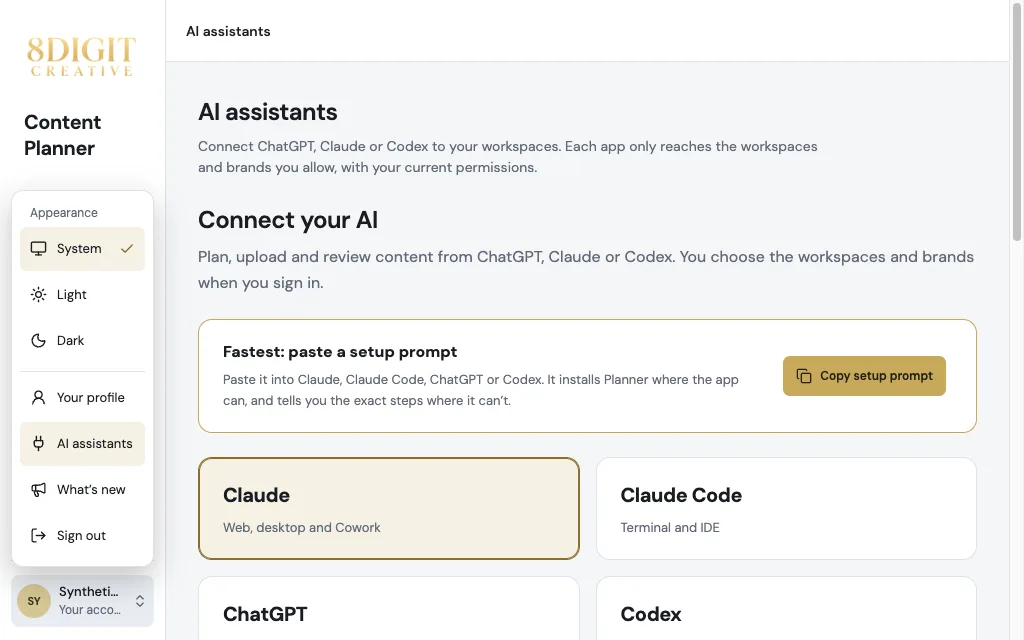
AI assistants, in your account menu
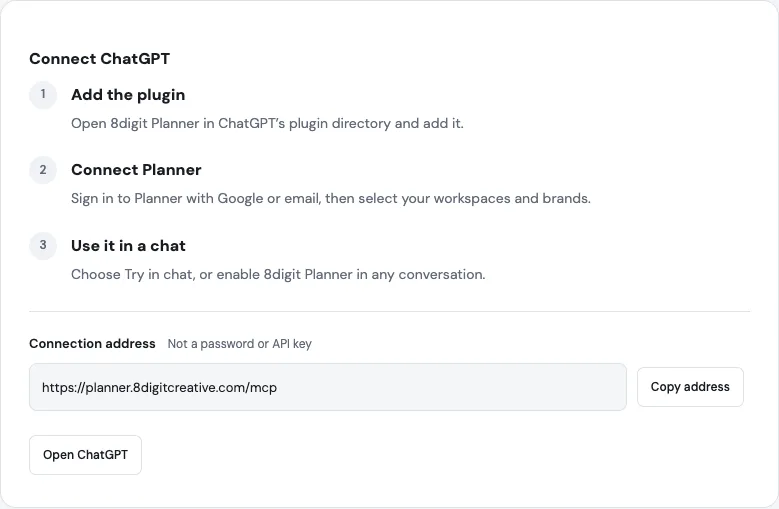
Your AI connections have one home: connect Claude or ChatGPT, choose the workspaces and brands each connection can reach, or revoke it, all from AI assistants. Setup now starts from each app’s official directory.
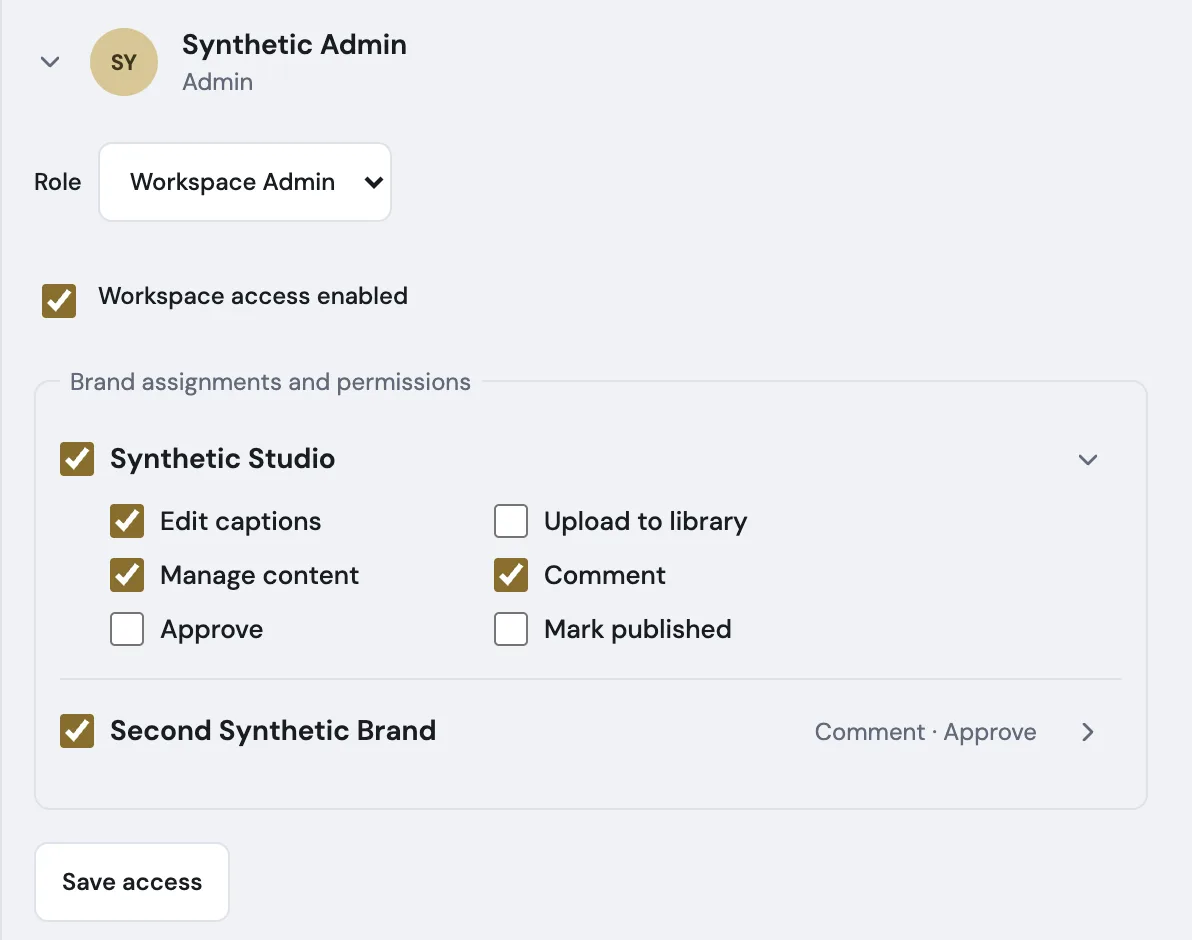
Permissions under each brand
In Team, each brand is its own row: check it to give access and its permissions open right below, in two aligned columns. Fold a brand to see a one-line summary. Invitations and default permissions use the same layout.
The same editor on every tab
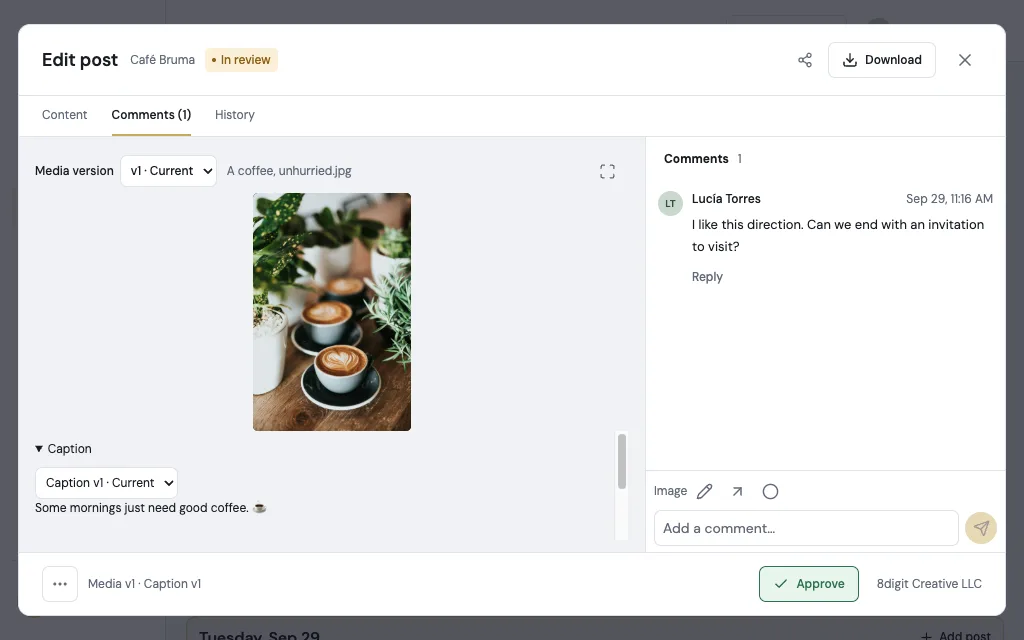
Approve, Save changes and More keep the same compact size and place in Content, Comments and History, and the caption version picker matches the media one.