Send your edit to Planner without leaving DaVinci Resolve
The 8digit Planner panel for DaVinci Resolve Studio uploads your timeline to a brand’s Library or puts it on the calendar as a Reel, and brings comments back as timeline markers. It works on a Mac with DaVinci Resolve Studio 21 and installs with one command.
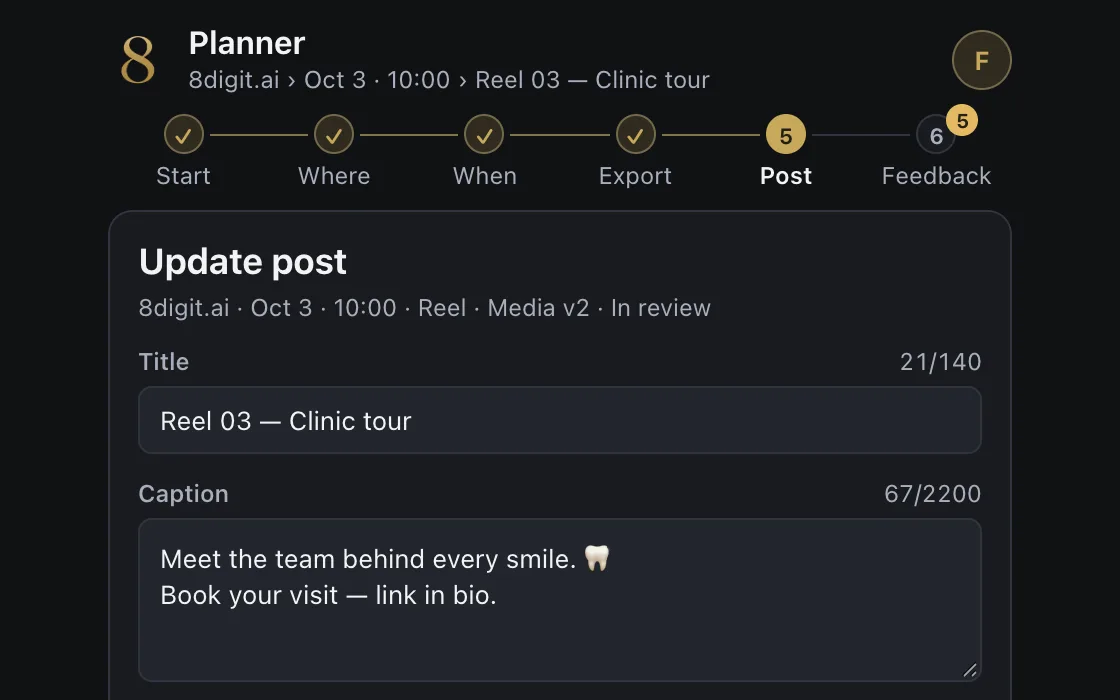
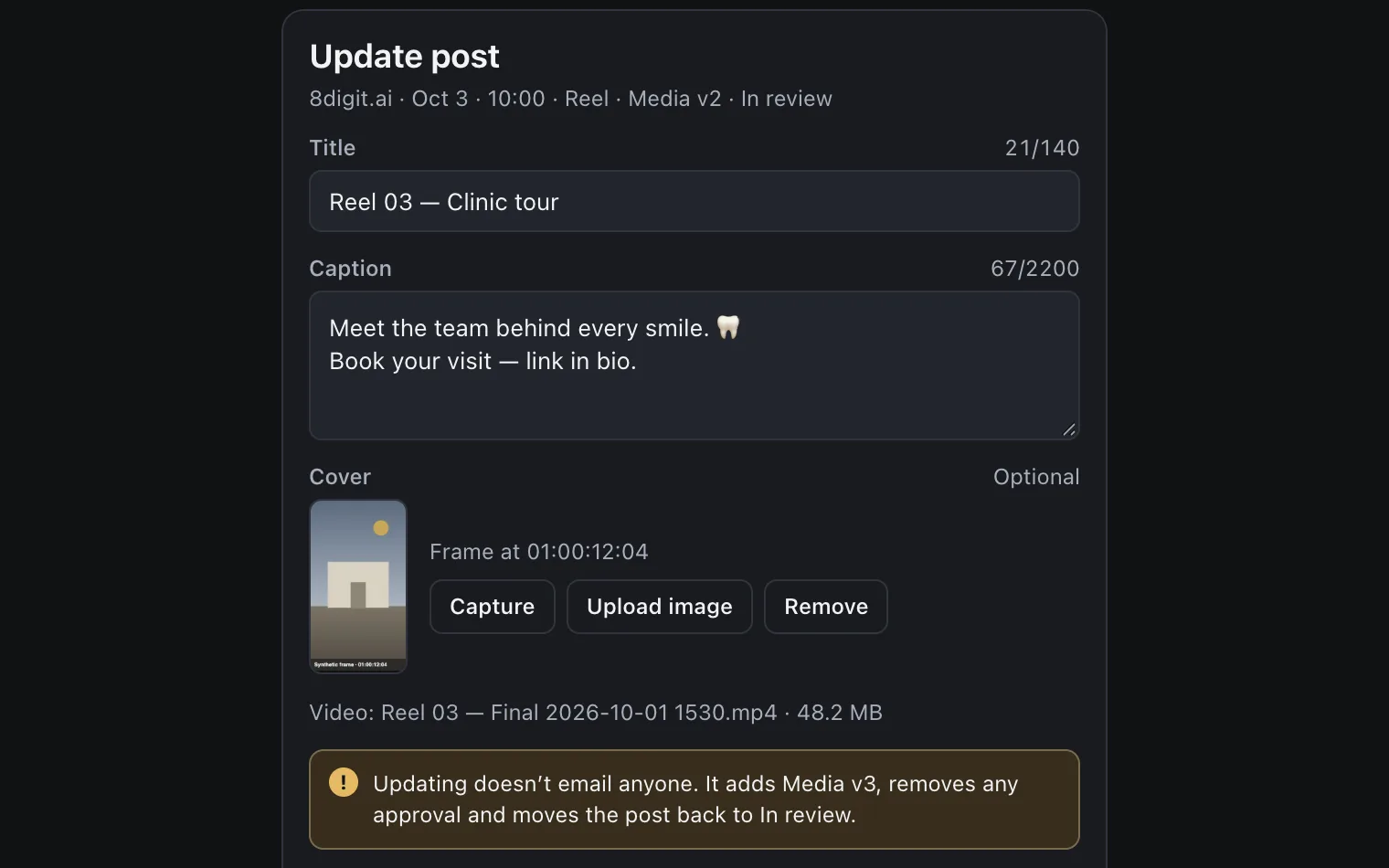
Put your edit on the calendar
Export the timeline and place it on the content calendar as a Reel, with a caption and a cover captured from the playhead or uploaded. Create a new post or update an existing one; new posts start as Draft.
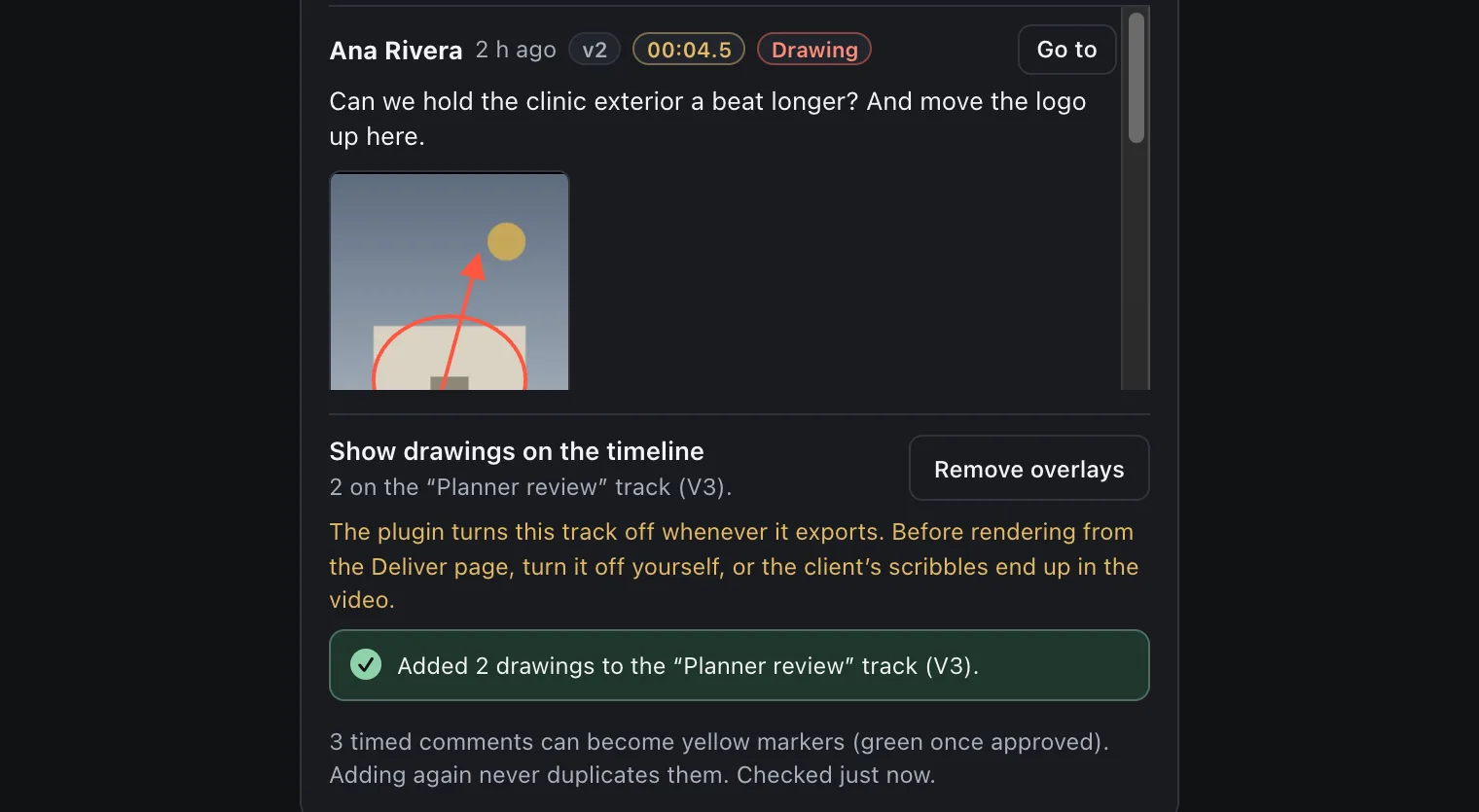
Comments come back as markers
Comments from Planner land on your timeline as markers at their exact time, and Go to jumps to the frame. Drawings can go on a “Planner review” track, which the panel turns off when it exports.
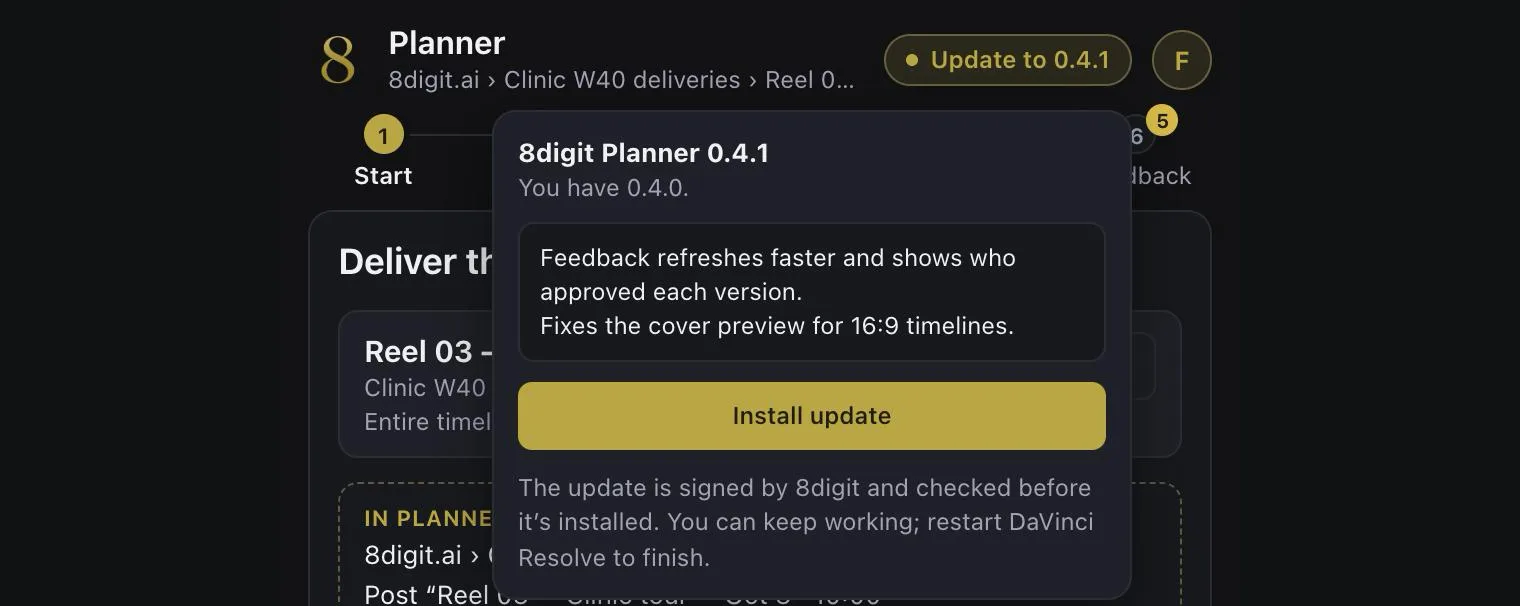
Signed updates from the panel
When a new version is ready, the panel’s header offers to update and installs it after checking its signature. Restart DaVinci Resolve to finish; the previous version is kept.