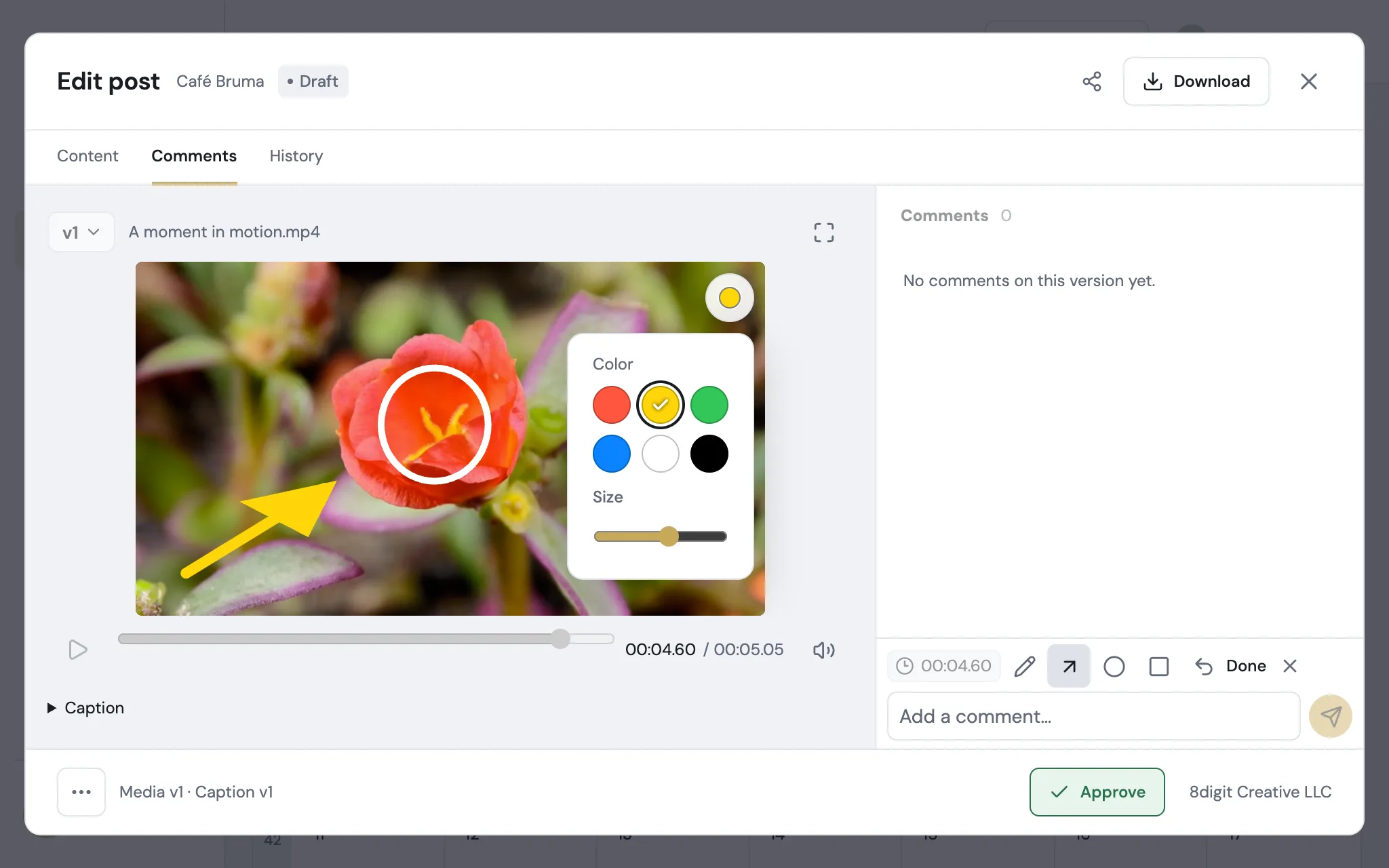
Annotations that stand out on any footage
Choose a color and a size for your annotations, and frame details with the new rectangle. It works on videos, photos and carousels, wherever you leave feedback.
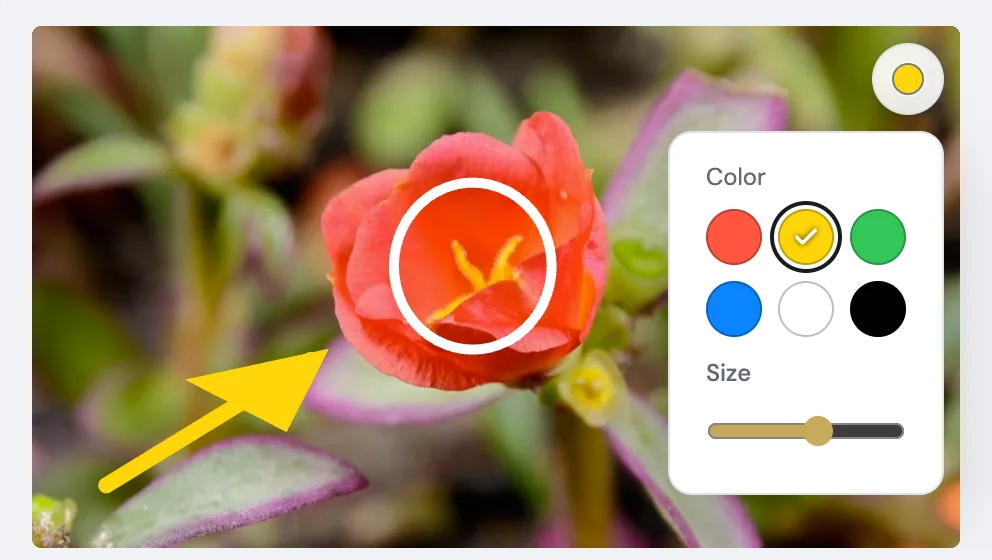
Pick a color that stands out
While you draw, the round button in the corner of the media opens six colors: red, yellow, green, blue, white and black. On red footage, switch to yellow or white so your notes stay easy to see.
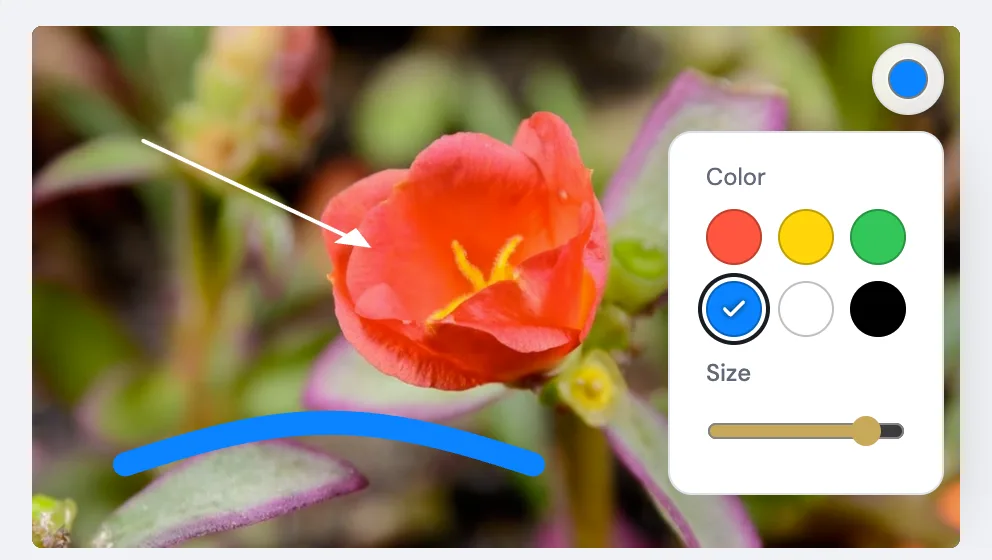
Draw thin or thick lines
The Size slider in the same panel sets how thick your lines are. The button shows the color and size you are using, and Planner remembers both for your next comment in this browser.
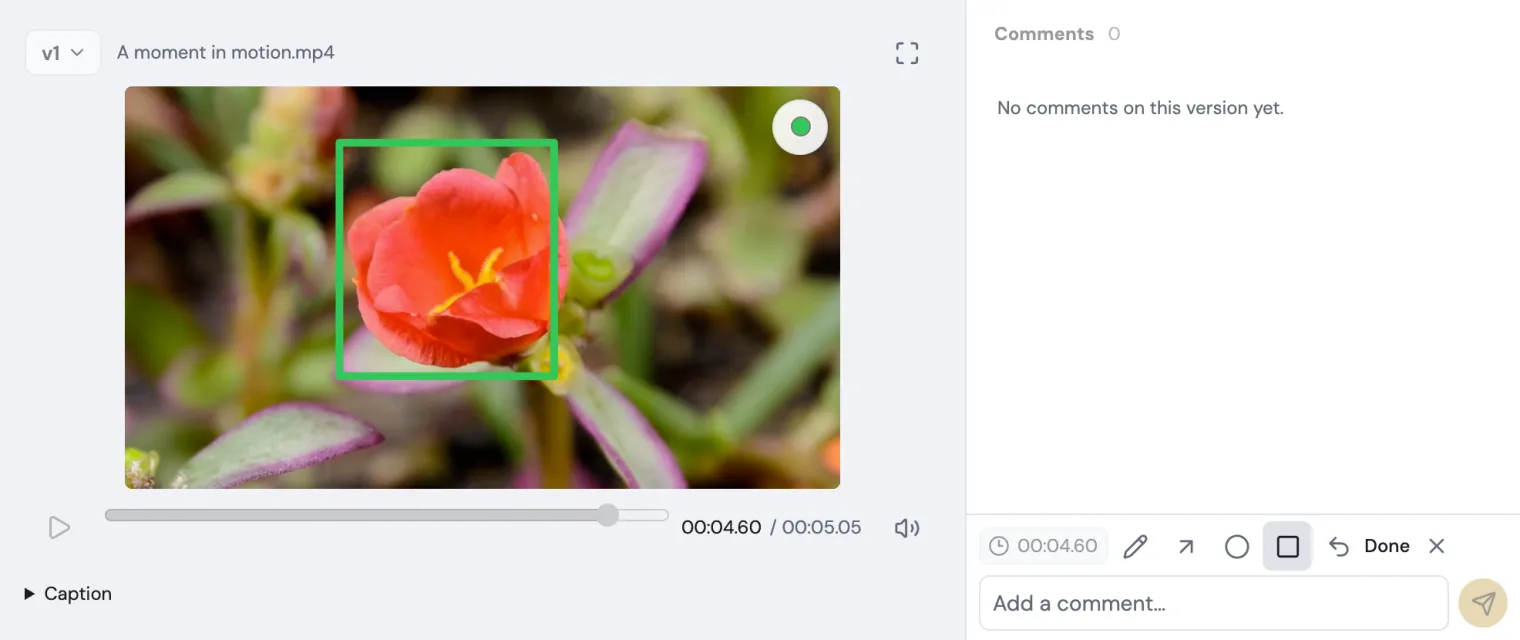
Frame details with a rectangle
The rectangle joins the pen, the arrow and the circle. Drag from corner to corner to frame part of a video or an image.